
Change to Another Loader Image
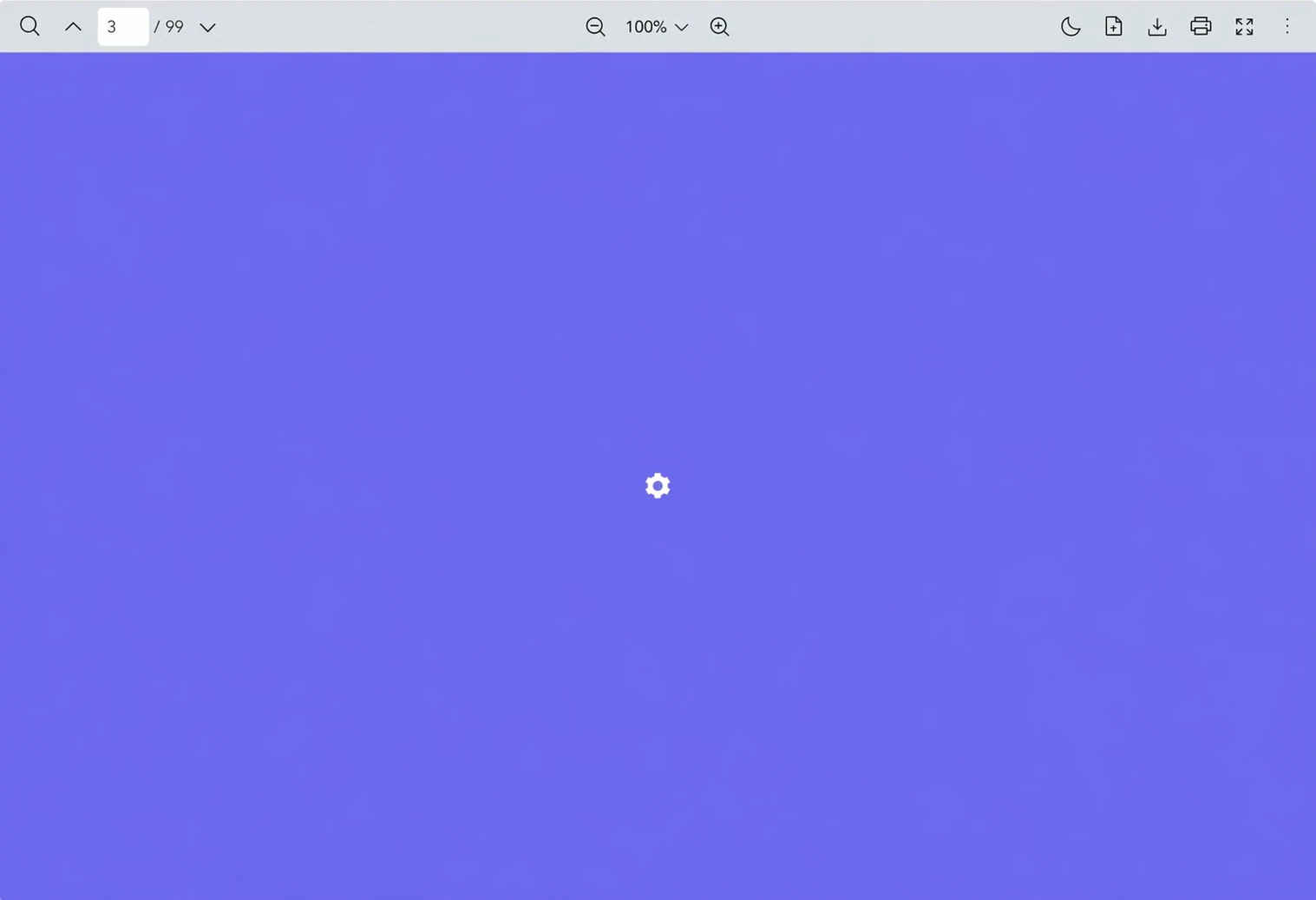
Scenario
You want a custom loader image (logo, branded spinner, or illustration) instead of the built-in icon or loader progress while PDFs load.
- When the Vue PDF component starts loading, the library displays a custom loader image.
- When a PDF document starts loading, the custom loader image is displayed on the layout.
- When a PDF page starts loading, the custom loader image is displayed on the page.
What to Use
Use the src prop from VPdfViewer to load a PDF file. To replace only the default loader graphic, use the loaderImage slot.
| Slot | Objective |
|---|---|
loaderImage | Provide custom content for the loader image area (image, SVG, or component) while the document loads. |
vue
<template>
  <VPdfViewer
    src="https://raw.githubusercontent.com/mozilla/pdf.js/ba2edeae/web/compressed.tracemonkey-pldi-09.pdf"
  >
    <template #loaderImage>
      <!-- Use an <img> (e.g. your logo) or inline SVG -->
      <img src="/logo.svg" alt="Loading" width="48" height="48" />
    </template>
  </VPdfViewer>
</template>

<style scoped>
/* Optional: adjust loader backdrop color */
:deep(.vpv-variables) {
  --vpv-loader-backdrop-color: #7862ff;
}
:deep(.vpv-variables.vpv-variables__dark) {
  --vpv-loader-backdrop-color: white;
}
</style>
Notes
- Point
srcinimgtag to any URL or static asset your app serves. The example above uses/logo.svgfrom this documentation site’s public folder. - Dark theme: The snippet above sets
--vpv-loader-backdrop-colorfor.vpv-variables__darkwhen using dark mode variables, matching the pattern in Change from Loader Image to Loader Progress. - To customize the progress label or percentage, use the
loaderProgressslot in addition toloaderImage.